> ## Documentation Index
> Fetch the complete documentation index at: https://superflow-claude-superflow-mcp-docs-distribution-b0cixg.mintlify.site/llms.txt
> Use this file to discover all available pages before exploring further.
# Introduction
> Superflow is a review tool for live websites and creative assets. Comment in place, let AI agents run your QA checklist, and get sign-off without chasing anyone.
Superflow is where your team, your clients, and your AI agents review work.
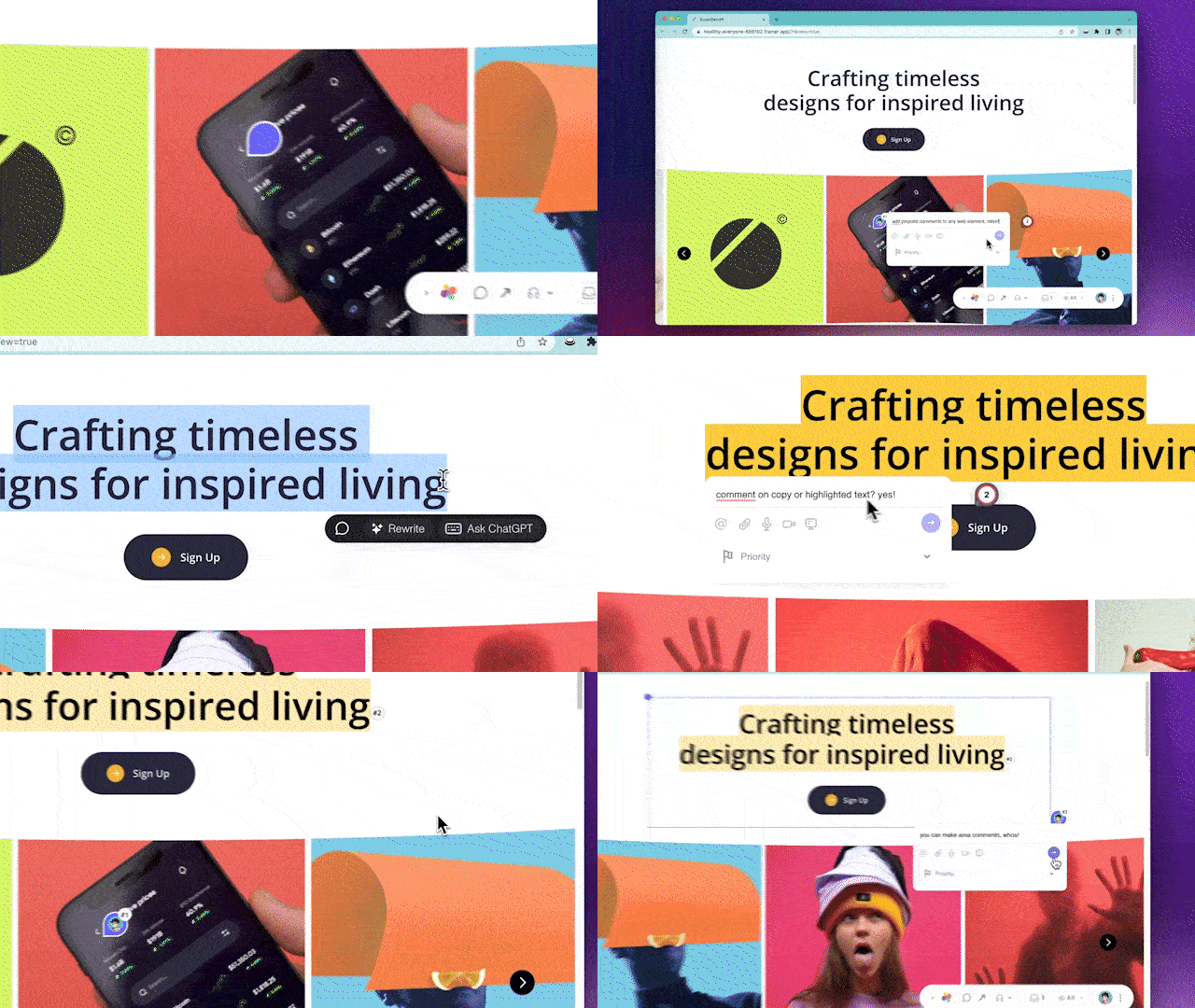
Add Superflow to a website and anyone can leave feedback directly on the page — pinned to the element, the text, or the region it refers to. No screenshots, no spreadsheets of "the button on the pricing page is 2px off". The same review flow works on the files you ship alongside the site: PDFs, images, videos, and Lottie animations.
On top of that, Superflow runs **AI review agents**. Paste in the QA checklist your team already uses, and agents open every new build, check it, and leave contextual comments the same way a human reviewer would.
 ## What you can do
Turn on Review Mode on any page — production, staging, or a preview deploy —
and comment on the real thing.
Upload PDFs, images, videos, and Lottie files and collect feedback on them
in the same workspace.
Accessibility, copy, broken links, visual QA, or your own custom checklist —
run automatically on every deployment.
Assign, prioritise, and resolve threads on a Kanban board, or push them into
Asana, ClickUp, Monday, or Slack.
## How it works
A project is one site or one set of files. Create one from the
[dashboard](/dashboard/how-create-a-new-project) and Superflow gives you a
unique install snippet.
Paste the snippet into your site, or install the package if you're on a
framework. It takes a few minutes on every platform we support, and
Superflow verifies the install for you.
Add `?review=true` to your URL to enter
[Review Mode](/how-to-guides/how-to-enter-the-review-mode), then comment on
any element, text selection, or region. Add voice notes, screen recordings,
or file attachments to any thread.
Reply, assign, set a priority, and change status. Threads stay pinned to the
element they were left on, so a comment always keeps its context.
## Install Superflow
Webflow, Wordpress, Wix, Squarespace, Shopify, Framer, Bubble, HubSpot,
Drupal, Typedream, and Google Tag Manager.
React, Next.js, Vue, Angular, and Svelte via the
`@usesuperflow/client` package.
## Connect the rest of your stack
Connect Superflow to Claude, ChatGPT, Cursor, and Gemini so your AI
assistant can run agents and read findings for you.
Two-way sync with Slack, Asana, ClickUp, Monday, and Vercel — plus
[webhooks](/Integrations/how-to-use-webhooks) for everything else.
Create projects programmatically with an
[auth token](/security/auth-tokens).
How Superflow handles your data, and the
[CSP rules](/security/content-security-policy) to allow-list.
## Key concepts
| Term | What it means |
| --------------- | ---------------------------------------------------------------------------------------------------------------------------------- |
| **Workspace** | Your team's account. Holds every project, file, and member. |
| **Project** | One website or file set being reviewed. Each project has its own install snippet, comments, and members. |
| **Review Mode** | The state where the Superflow toolbar is active on your site and comments are visible. Enabled with `?review=true`. |
| **Thread** | A comment and its replies, pinned to a specific element, text selection, or region of the page. |
| **Agent** | An AI reviewer that opens a page and files findings as comment threads. Start from a preset or write your own instructions. |
| **Guest mode** | Lets clients and stakeholders comment without a Superflow account. See [what guest mode is](/product-features/what-is-guest-mode). |
| **Seat** | A member who can be assigned work in your workspace. See [what a seat is](/billing/what-is-a-seat). |
## Where to go next
Pick your platform and get Superflow running.
Step-by-step guides for every part of the review flow.
Drive Superflow from Claude, ChatGPT, Cursor, or Gemini.
Need a hand? Reach us from the [support section](/dashboard/navigating-the-support-section)
in the dashboard.
## What you can do
Turn on Review Mode on any page — production, staging, or a preview deploy —
and comment on the real thing.
Upload PDFs, images, videos, and Lottie files and collect feedback on them
in the same workspace.
Accessibility, copy, broken links, visual QA, or your own custom checklist —
run automatically on every deployment.
Assign, prioritise, and resolve threads on a Kanban board, or push them into
Asana, ClickUp, Monday, or Slack.
## How it works
A project is one site or one set of files. Create one from the
[dashboard](/dashboard/how-create-a-new-project) and Superflow gives you a
unique install snippet.
Paste the snippet into your site, or install the package if you're on a
framework. It takes a few minutes on every platform we support, and
Superflow verifies the install for you.
Add `?review=true` to your URL to enter
[Review Mode](/how-to-guides/how-to-enter-the-review-mode), then comment on
any element, text selection, or region. Add voice notes, screen recordings,
or file attachments to any thread.
Reply, assign, set a priority, and change status. Threads stay pinned to the
element they were left on, so a comment always keeps its context.
## Install Superflow
Webflow, Wordpress, Wix, Squarespace, Shopify, Framer, Bubble, HubSpot,
Drupal, Typedream, and Google Tag Manager.
React, Next.js, Vue, Angular, and Svelte via the
`@usesuperflow/client` package.
## Connect the rest of your stack
Connect Superflow to Claude, ChatGPT, Cursor, and Gemini so your AI
assistant can run agents and read findings for you.
Two-way sync with Slack, Asana, ClickUp, Monday, and Vercel — plus
[webhooks](/Integrations/how-to-use-webhooks) for everything else.
Create projects programmatically with an
[auth token](/security/auth-tokens).
How Superflow handles your data, and the
[CSP rules](/security/content-security-policy) to allow-list.
## Key concepts
| Term | What it means |
| --------------- | ---------------------------------------------------------------------------------------------------------------------------------- |
| **Workspace** | Your team's account. Holds every project, file, and member. |
| **Project** | One website or file set being reviewed. Each project has its own install snippet, comments, and members. |
| **Review Mode** | The state where the Superflow toolbar is active on your site and comments are visible. Enabled with `?review=true`. |
| **Thread** | A comment and its replies, pinned to a specific element, text selection, or region of the page. |
| **Agent** | An AI reviewer that opens a page and files findings as comment threads. Start from a preset or write your own instructions. |
| **Guest mode** | Lets clients and stakeholders comment without a Superflow account. See [what guest mode is](/product-features/what-is-guest-mode). |
| **Seat** | A member who can be assigned work in your workspace. See [what a seat is](/billing/what-is-a-seat). |
## Where to go next
Pick your platform and get Superflow running.
Step-by-step guides for every part of the review flow.
Drive Superflow from Claude, ChatGPT, Cursor, or Gemini.
Need a hand? Reach us from the [support section](/dashboard/navigating-the-support-section)
in the dashboard.