> ## Documentation Index
> Fetch the complete documentation index at: https://superflow-claude-superflow-mcp-docs-distribution-b0cixg.mintlify.site/llms.txt
> Use this file to discover all available pages before exploring further.
# How to use the AI co pilot
## How to Use the AI Co-Pilot
In this article, you will learn how to use the AI Co-Pilot feature. It is important to note that you have to highlight more than two (2) words to activate the AI Toolbar.
1. Ensure that the **Review Mode** is enabled and the **Superflow Toolbar** is active.
2. Highlight the text that you want to use the AI Co-Pilot on.
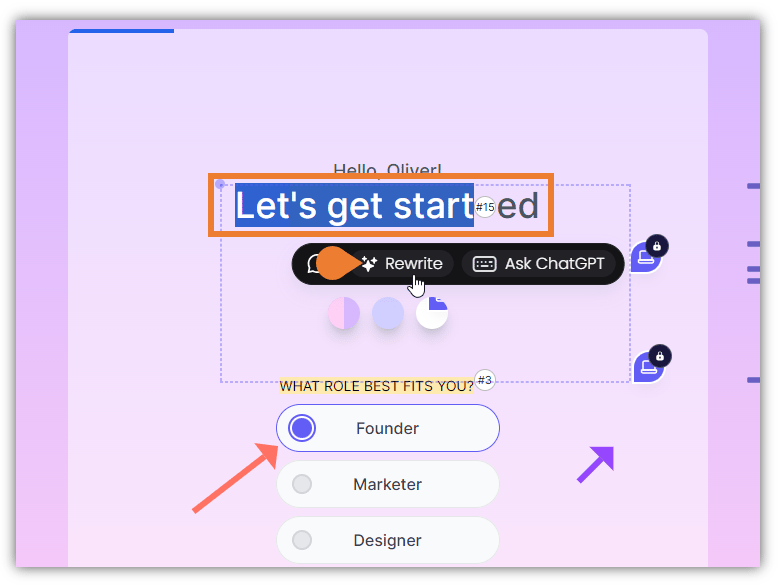 3. An **AI Toolbar** will appear, click **Rewrite**.
4. The **Rewrite** dialog box will appear with AI-generated suggestions. To generate more suggestions, click the **Refresh** icon.
5. To select a rewritten text, click its **Radio Button**.
3. An **AI Toolbar** will appear, click **Rewrite**.
4. The **Rewrite** dialog box will appear with AI-generated suggestions. To generate more suggestions, click the **Refresh** icon.
5. To select a rewritten text, click its **Radio Button**.
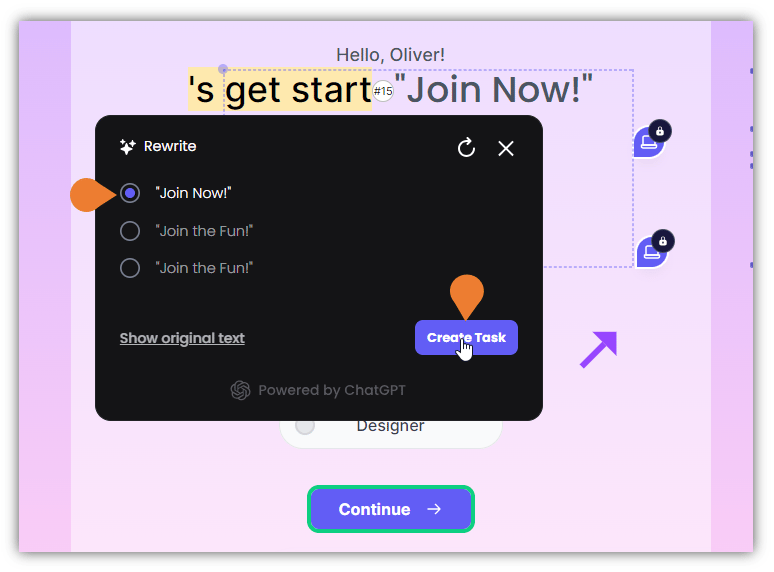 6. After selecting the preferred rewritten text, click the **Create Task** button.