> ## Documentation Index
> Fetch the complete documentation index at: https://superflow-claude-superflow-mcp-docs-distribution-b0cixg.mintlify.site/llms.txt
> Use this file to discover all available pages before exploring further.
# How to switch to mobile view
## How to Switch to Mobile View
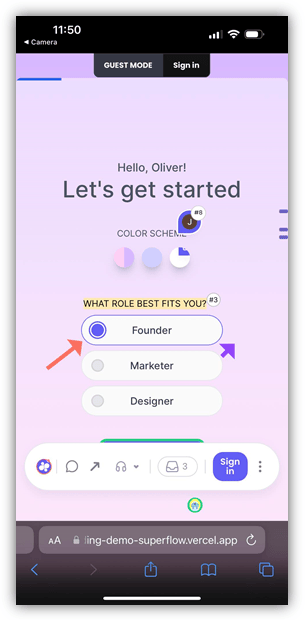
In this article, you will learn how to switch to mobile view. This option enables you to access a page you are working on from your mobile device by accessing the generated QR Code.
1. Find the **Superflow Toolbar** and click the **More Options** icon.
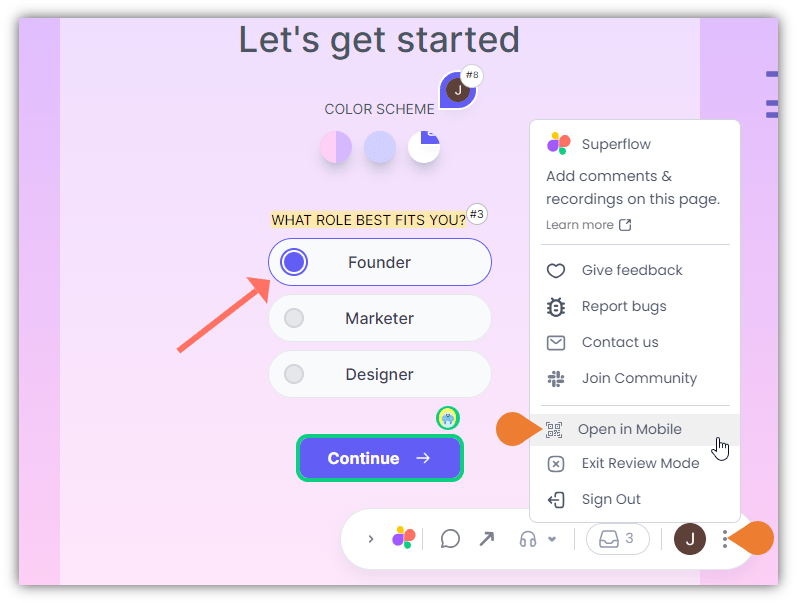 2. A sub-menu will expand, click the **Open in Mobile** to select.
3. A **QR Code** will appear on the screen. On your mobile device, open the **Camera** app and scan the **QR Code**.
2. A sub-menu will expand, click the **Open in Mobile** to select.
3. A **QR Code** will appear on the screen. On your mobile device, open the **Camera** app and scan the **QR Code**.
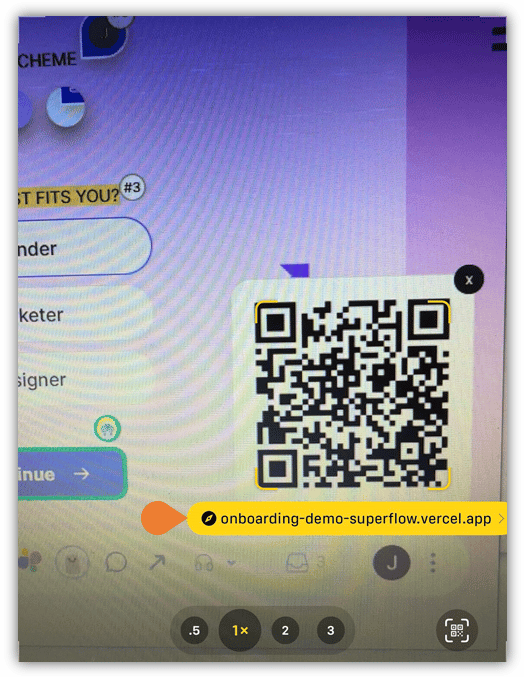 4. A **Link** will appear, select the link and the mobile version of the current screen of your desktop/laptop will appear on your mobile device.