> ## Documentation Index
> Fetch the complete documentation index at: https://superflow-claude-superflow-mcp-docs-distribution-b0cixg.mintlify.site/llms.txt
> Use this file to discover all available pages before exploring further.
# How to enter the review mode
## How to Enter the Review Mode
In this article, you will learn how to enter the Review Mode and enable the Superflow Toolbar.
1. Open a **Browser** and go to the page you want to review.
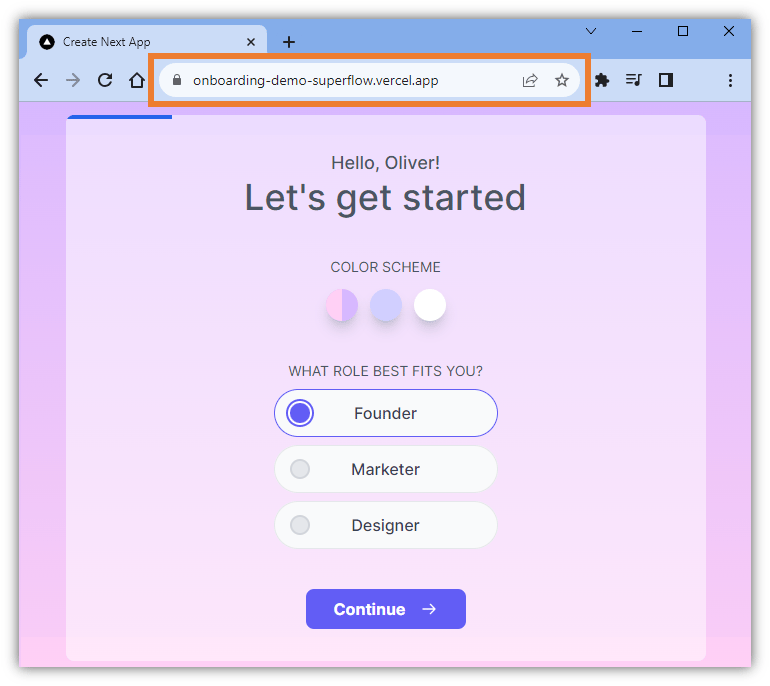 2. In the **Address Bar**, edit the address by adding this value at the end of the URL: **?review=true**.
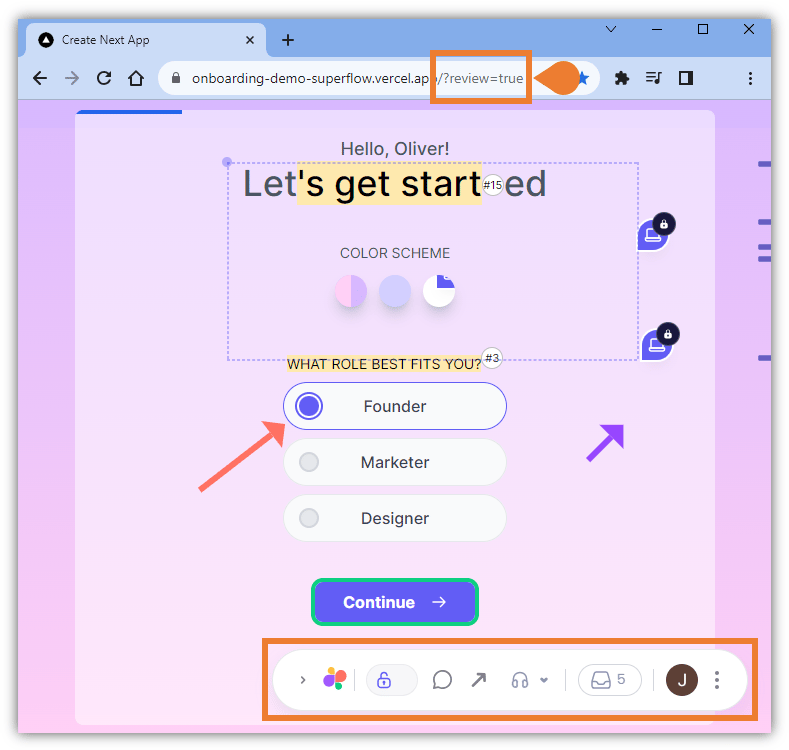 3. Press **Enter** on your keyboard to enable the **Review Mode**.
4. You will enter the **Review Mode** and the **Superflow Toolbar** will be enabled.
3. Press **Enter** on your keyboard to enable the **Review Mode**.
4. You will enter the **Review Mode** and the **Superflow Toolbar** will be enabled.