> ## Documentation Index
> Fetch the complete documentation index at: https://superflow-claude-superflow-mcp-docs-distribution-b0cixg.mintlify.site/llms.txt
> Use this file to discover all available pages before exploring further.
# How to draw a box comment on the page
## How to Add a Box Comment on the Page
In this article, you will learn how to draw a box and create a comment thread on an element or a text.
1. Enter into the **Comment Mode**. See How to Enter/Exit Comment Mode.
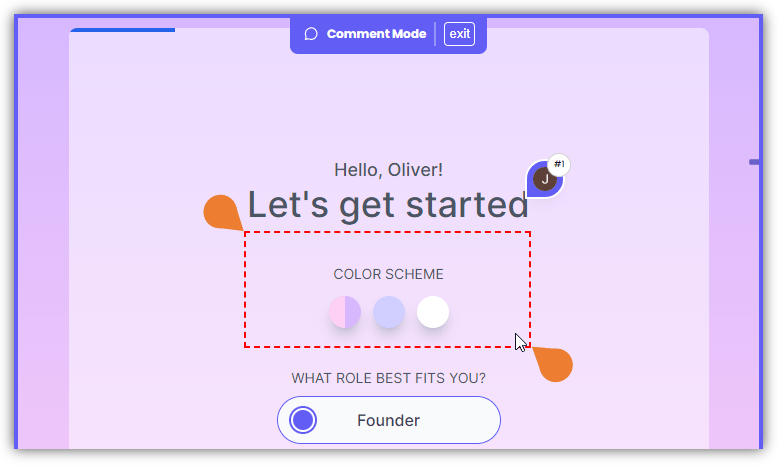 2. Find the area on the page where you want to draw a box comment. **Left Click** on the area, hold it, and drag the box to determine the box size.
3. After drawing the box, the **Comment Box** will appear, enter your comment or type @ to add other users.
> **Note**: the **Comment Box** lets you add users, attach files, and record audio, videos, and screens.
2. Find the area on the page where you want to draw a box comment. **Left Click** on the area, hold it, and drag the box to determine the box size.
3. After drawing the box, the **Comment Box** will appear, enter your comment or type @ to add other users.
> **Note**: the **Comment Box** lets you add users, attach files, and record audio, videos, and screens.
 4. Click the **Post** button to post your comment.