> ## Documentation Index
> Fetch the complete documentation index at: https://superflow-claude-superflow-mcp-docs-distribution-b0cixg.mintlify.site/llms.txt
> Use this file to discover all available pages before exploring further.
# How to comment on a file
## How to Comment on a File
In this article, you will learn how to comment on a file using the dashboard.
Access the Superflow Dashboard by going to [app.usesuperflow.com](app.usesuperflow.com). Alternatively, when you are in Review Mode, you can use the method below:
1. Find the **Superflow Toolbar** and click the **More Options** icon.
 2. A sub-menu will expand, click the **View Project** option to select.
3. A new tab will direct you to the **Project Dashboard** page.
> **Note**: By default, you will be directed to the Dashboard for Comment Status screen when accessing the **Project Dashboard**.
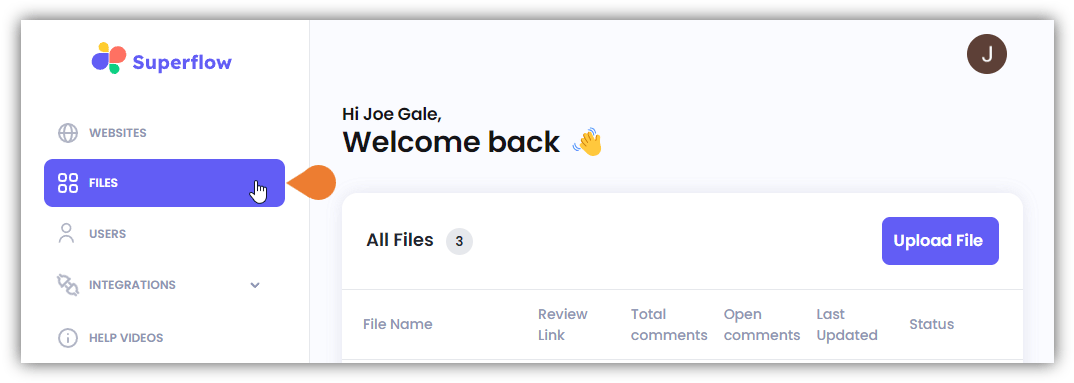
4. Click the **FILES** module to access the **Files** page.
2. A sub-menu will expand, click the **View Project** option to select.
3. A new tab will direct you to the **Project Dashboard** page.
> **Note**: By default, you will be directed to the Dashboard for Comment Status screen when accessing the **Project Dashboard**.
4. Click the **FILES** module to access the **Files** page.
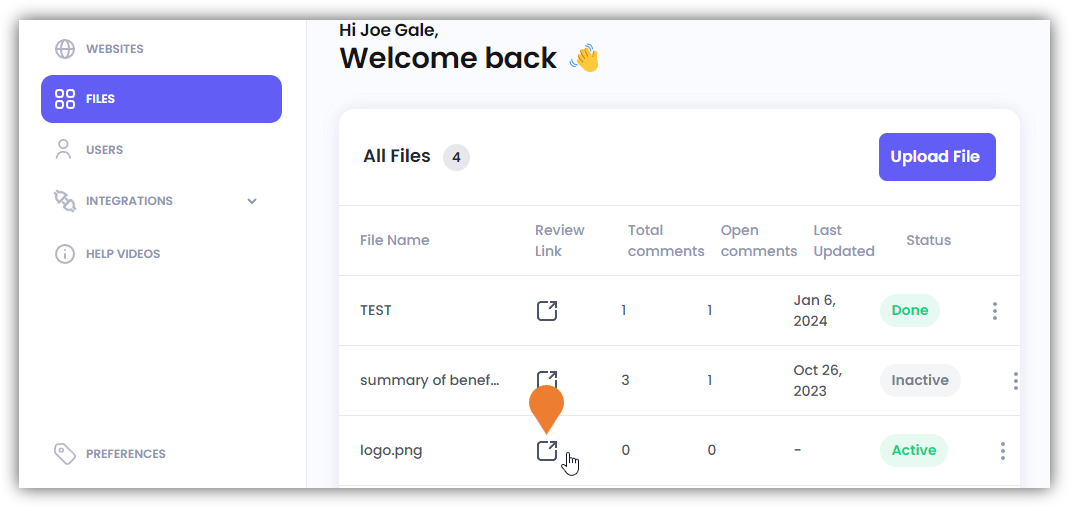
 5. Find the file and click its **Review Link** icon.
 6. On the **Superflow Toolbar**, click the **Comments** icon to enable the **Comment Mode**.
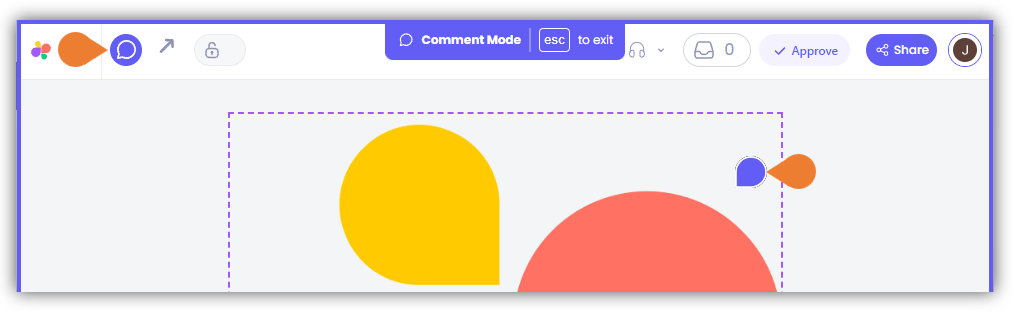 7. Point and click the area on the file that you want to comment on.
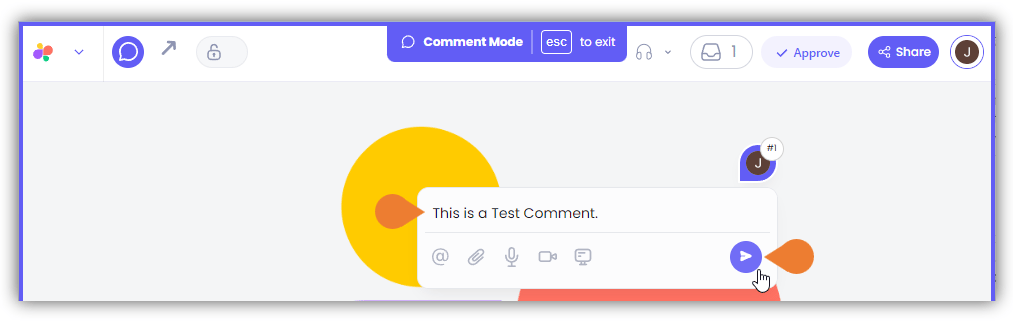
8. In the **Comment** field, enter your comment and click the **Send** icon.
7. Point and click the area on the file that you want to comment on.
8. In the **Comment** field, enter your comment and click the **Send** icon.